Common 360° export mistakes (and how to fix them)
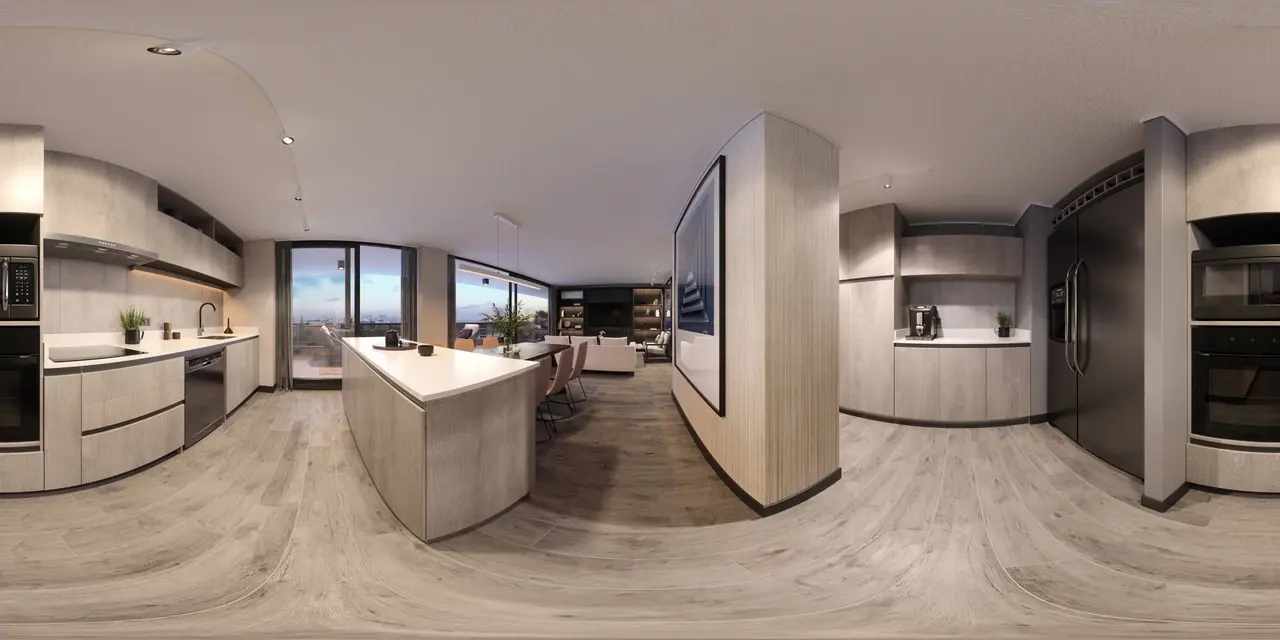
Every 360° tour platform wants the same file: an equirectangular image, the full sphere flattened into a rectangle that is exactly twice as wide as it is tall. Prewalk checks the ratio on upload and rejects anything else with a message that shows the file's size. This post lists the seven exports that trigger that message, how to recognize each one, and what to do instead.
First, check the file
Right-click the file and open its properties (Windows: Details; Mac: Get Info, or press space to preview). Look at the dimensions. Divide the width by the height.
- Exactly 2.00 (for example 8192 × 4096, 11968 × 5984, 5760 × 2880): the ratio is right. If it is still rejected, the content is not a sphere; see mistakes 4 and 5.
- Anything else: one of the cases below.
Prewalk allows a tolerance of about half a percent, so 8000 × 4004 passes and 8000 × 4096 does not.
1. The phone's Panorama mode
Looks like: a very wide strip, ratio 3:1 or wider, no ceiling, no floor. Why: the camera app sweeps horizontally and never captures above or below. Fix: there is none for that file. Use a 360° camera, or a dedicated 360° app that captures the full sphere. Can I make a 360° tour with my phone? explains the options.
2. The "flat" or reframed export
Looks like: a normal photo or a 16:9 frame of the room. Why: the camera app exported the view you were looking at, not the whole sphere. Many apps default to this "reframe" or "flat" export for sharing on social media. Fix: export again and choose the full 360° option. It is often labeled "360 photo", "panorama", "equirectangular" or "export original".
3. The cropped panorama
Looks like: nearly 2:1 but not quite, for example 8192 × 3800, with the floor or ceiling cut off. Why: a photo editor cropped the bottom to remove the tripod, or the top to remove a stitching artifact. Fix: go back to the uncropped file. A sphere cannot be cropped and stay a sphere. To hide a tripod, cover it in the editor by cloning the floor, keeping the full canvas.
4. The cube map
Looks like: six squares in a cross or a strip, ratio 4:3, 6:1 or 1:6, each square showing one direction. Why: the render or the camera software exported the sphere as six faces, a format games and some viewers use. Fix: re-export as equirectangular. Most render programs offer both; choose "spherical" or "equirectangular". If only the cube map exists, a panorama tool can convert it, but it is faster to render again.
5. The 2:1 crop of a normal photo
Looks like: the ratio is exactly 2:1, the upload is accepted, and the tour shows a warped, stretched room. Why: someone cropped a wide photo to 2:1 believing the ratio was the only requirement. The ratio was right; the content is not a sphere. Fix: only a true 360° capture or a spherical render works. There is no conversion from a normal photo.
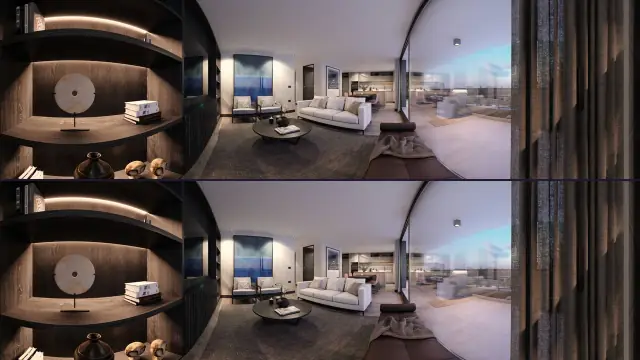
6. Side-by-side stereo
Looks like: two near-identical spheres next to each other, ratio 4:1. Why: the render was exported in stereo for a headset, in the side-by-side layout. Fix: export top-bottom (over-under) stereo instead: two spheres stacked, ratio 1:1, for example 8192 × 8192. Prewalk accepts top-bottom stereo on Pro and above, and shows the depth in VR. Mono renders at 2:1 work on every plan.
7. The wrong file type
Looks like: .exr, .hdr, .heic, .cr3, .mp4.
Why: render engines often default to EXR or HDR; iPhones save HEIC; some cameras export 360° video rather than stills.
Fix: save as JPG, PNG, TIFF or WebP. For HDR renders, convert in your render program or an image editor, in sRGB. For HEIC, export as JPG from the phone, or upload through the browser on an iPhone, which converts it. For video, export a still frame as a 360° photo from the camera app, not from a video player.
Two checks that are not about the ratio
Width over the plan's limit. Free accepts up to 8192 px wide; Pro and above up to 16384. A 12K render on Free is rejected with a "See plans" button, not a ratio message. Downscale to 8192 × 4096 in the meantime; it still looks sharp.
File over 1 GB. Uncompressed 16-bit TIFFs at 16K get there. Save as 8-bit, or compress the TIFF (LZW or ZIP), or use PNG.
The quick reference
| You see | It is | Do |
|---|---|---|
| Wide strip, no floor or ceiling | Phone Panorama mode | Use a 360° camera or app |
| Normal photo of the room | Flat or reframed export | Re-export as 360 photo |
| Almost 2:1, floor or ceiling missing | Cropped | Use the uncropped file |
| Six squares | Cube map | Re-export as equirectangular |
| Exactly 2:1 but warped in the tour | Crop of a normal photo | Shoot or render a real sphere |
| Two spheres side by side | SBS stereo | Export top-bottom |
| EXR, HDR, HEIC, RAW, MP4 | Wrong file type | Convert to JPG, PNG, TIFF or WebP |
Once the file is right, upload takes the same path for photos and renders: Your first tour in 10 minutes. For render settings in each program, see Export a 360° render from your render software.