Can I make a 360° tour with my phone?
Yes, sometimes. The short version: your phone's normal panorama mode does not work, a dedicated 360° app can work, and a 360° camera is what you want for client work. Here is how to tell which case you are in.
What Prewalk needs
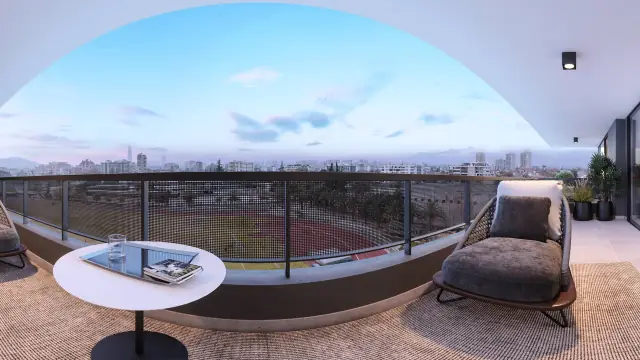
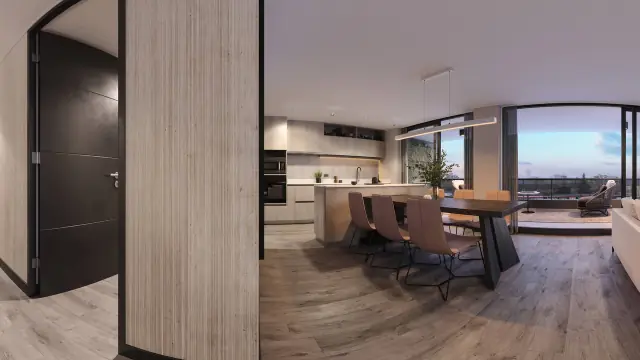
Every scene is a 2:1 equirectangular image: a full sphere flattened into a picture that is exactly twice as wide as it is tall. The studio checks the ratio on upload. A file that is not 2:1 is rejected with a card that shows its size, and nothing else happens.
The panorama mode in your camera app: no
The "Panorama" mode built into phone cameras captures a wide strip, not a sphere. It has no ceiling and no floor, and the ratio is usually 3:1 or wider. It is rejected on upload. There is no setting that turns it into a 360° image.
Dedicated 360° apps: it depends
Some apps guide you through 20 to 40 overlapping photos and stitch them into a full sphere. If the app saves a full 2:1 JPG, Prewalk accepts it. Expect these limits:
- Stitching seams. Each shot is taken from a slightly different spot, so straight lines break at the joins: door frames, tiles, kitchen counters.
- Moving things. A curtain in the breeze or a person walking through appears twice or half-cut.
- Exposure shifts. The app meters each shot separately. The window side comes out darker than the wall side, with visible steps between them.
- Soft detail. The stitched sphere is often 4K to 8K, and the detail is softer than the number suggests. When a buyer zooms into the kitchen, it goes blurry early.
- Time. One to three minutes per room, standing very still and rotating around the phone, not around yourself.
When a phone is enough
- A quick test of Prewalk before you buy a camera. Upload one scene on the Free plan and see how it looks.
- A link-only tour for yourself or a colleague, to check a layout.
- A room-by-room reminder after a viewing, where detail does not matter.
When you need a 360° camera
- Anything a client or buyer sees under your name.
- Rooms with big windows, mirrors or long straight lines.
- Tours that will be zoomed into, embedded on a website or opened in VR.
A 360° camera takes one shot per room in a few seconds, with both lenses captured at the same instant, so there are no seams from movement. Most pair with your phone: the phone is the remote shutter and the export tool, so the workflow stays on your phone anyway. The buying guide compares the price tiers.
If you do shoot with a phone
- Use a tripod with a phone clamp, or stand in one spot and rotate the phone around its lens, not around your body.
- Lights on, blinds open, nothing moving. Ask people to leave the room.
- Export the full sphere as a JPG. Check the file's dimensions: the width must be exactly twice the height.
- Name the file after the room, then upload it in the studio. Everything after upload is the same as with a camera: Your first tour in 10 minutes.
Common mistakes
- Uploading the strip from the camera's Panorama mode. It is not a sphere and is rejected.
- Exporting a "little planet" or a cropped, framed version from the app. Only the full equirectangular image works.
- Walking in a circle while capturing. Rotate the phone on the spot, or the floor stitches badly.