How to view a Prewalk tour
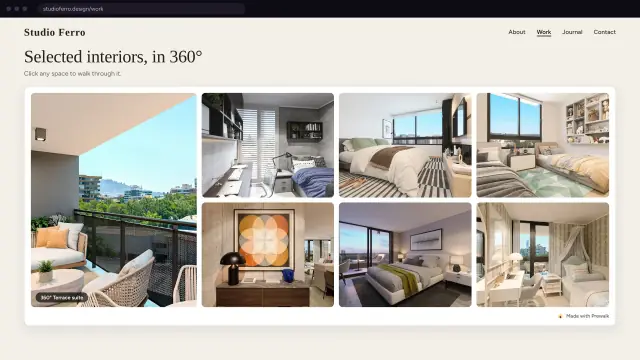
A Prewalk tour opens in your browser. There is no app to install and nothing to sign up for. This page is for visitors; if you make tours, send it to your clients with the link.
Look around
- Computer: click and drag, or use the arrow keys. Scroll to zoom. The view stops zooming before it gets blurry.
- Phone or tablet: drag with one finger. Pinch to zoom.
- Turn your phone instead: tap the Gyroscope button in the bottom bar, then allow motion access if your phone asks. Now the view follows the phone as you turn.
- If the tour sits inside another website and is set to two-finger mode, one finger scrolls the page and two fingers move the tour. The tour tells you: "Use two fingers to look around".
Walk to the next room
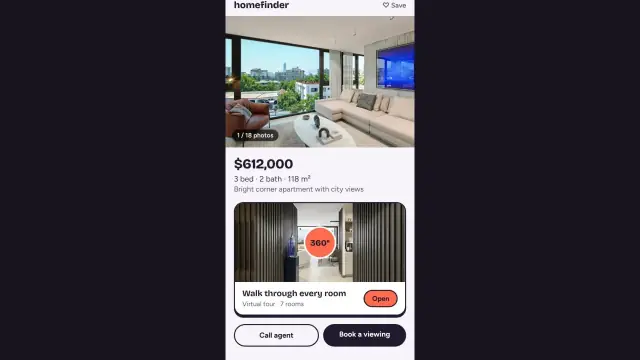
Rings, arrows or small pictures on the floor are hotspots. Tap or click one and the view walks through the doorway into the next room. Rest the pointer on a hotspot and a small preview of where it leads appears. There is a hotspot back in every room.
Jump between rooms
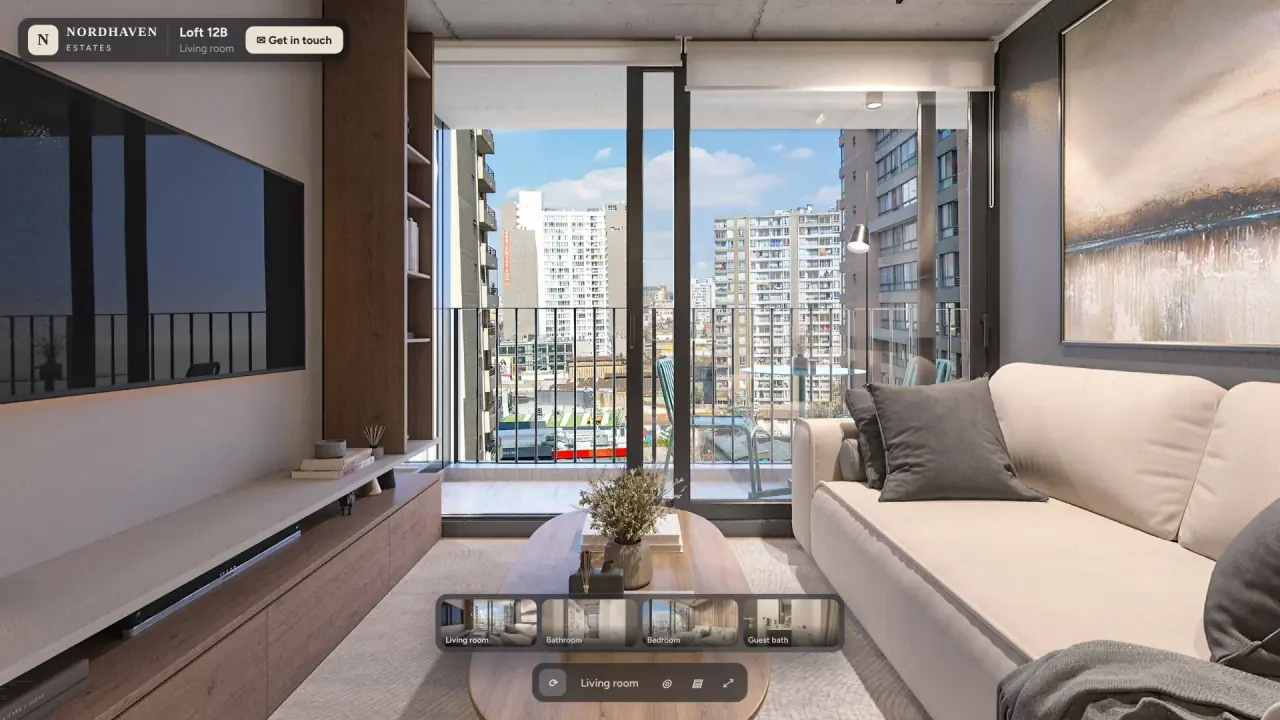
The strip of thumbnails at the bottom lists every room. Tap one to go there directly. The room's name appears above the bar. A tour with a single image has no strip: it is a 360° photo, and you can only look around.
Buttons on the bar
Owners choose which buttons show, so you may not see all of these:
- Rotate: the tour turns slowly by itself. Drag to stop it.
- Zoom: plus and minus.
- Arrows: nudge the view without dragging.
- Gyroscope: look by turning your phone.
- Fullscreen: fills the screen. Press Escape or the same button to leave.
Info points and the (i) panel
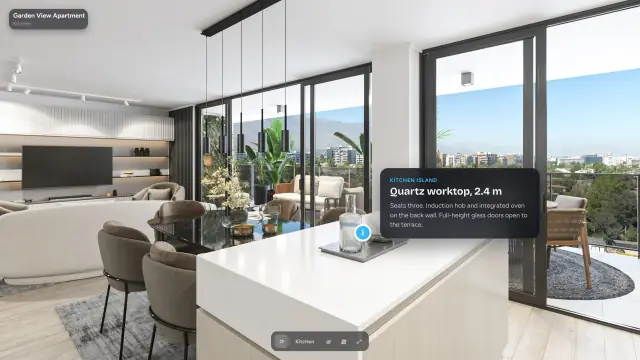
Small icons inside a room open a title and description, a photo, a video or a link. Tap one to open it and tap outside to close it. The (i) button at the edge of the player opens About this tour: the description, the people credited, and a Report link if something is wrong with the content.
Sound
Some tours have background music or sounds placed in the room. If the tour opens with a Start tour button, tapping it starts the sound. A speaker button mutes or unmutes; headphones make placed sounds easier to locate.
Get in touch
Some tours show a Get in touch button. It opens a short form over the tour, and your message goes to the tour's owner by email. Nothing is sent until you press send.
VR on a Meta Quest
- Put on the headset and open the tour's link in the Quest browser. Typing is easier if you paste the link or send it to yourself.
- Tap Open in VR headset in the player.
- If the player says "Preparing VR… this takes about half a minute", wait. It then says "VR is ready. Tap the VR button again." The second time it opens at once.
- In VR, look at a hotspot and select it to walk. Info and picture cards open in the headset; videos and web links wait until you leave VR.
Regular 360° photos and renders look flat in VR, like standing inside a sphere. Tours made from stereo renders have real depth.
If something does not work
- Blurry at first: that is normal. A soft preview opens first and the part you are looking at sharpens within seconds.
- The phone does not follow my movement: tap Gyroscope again and allow motion access when asked. Some browsers only allow it on secure pages.
- No VR button: it appears only in browsers that support VR, such as the Quest browser.
- The tour asks for a password: the owner set one. Ask them for it.
Next
Your first tour in 10 minutes, if you want to make one yourself.