Public, link-only or password: what publishing does
Every new tour and project starts as link only. Nothing you upload is visible to anyone until you decide. Making it public is one step, the Publish button, and this guide explains exactly what that step turns on, and how to turn it off again.
The three options
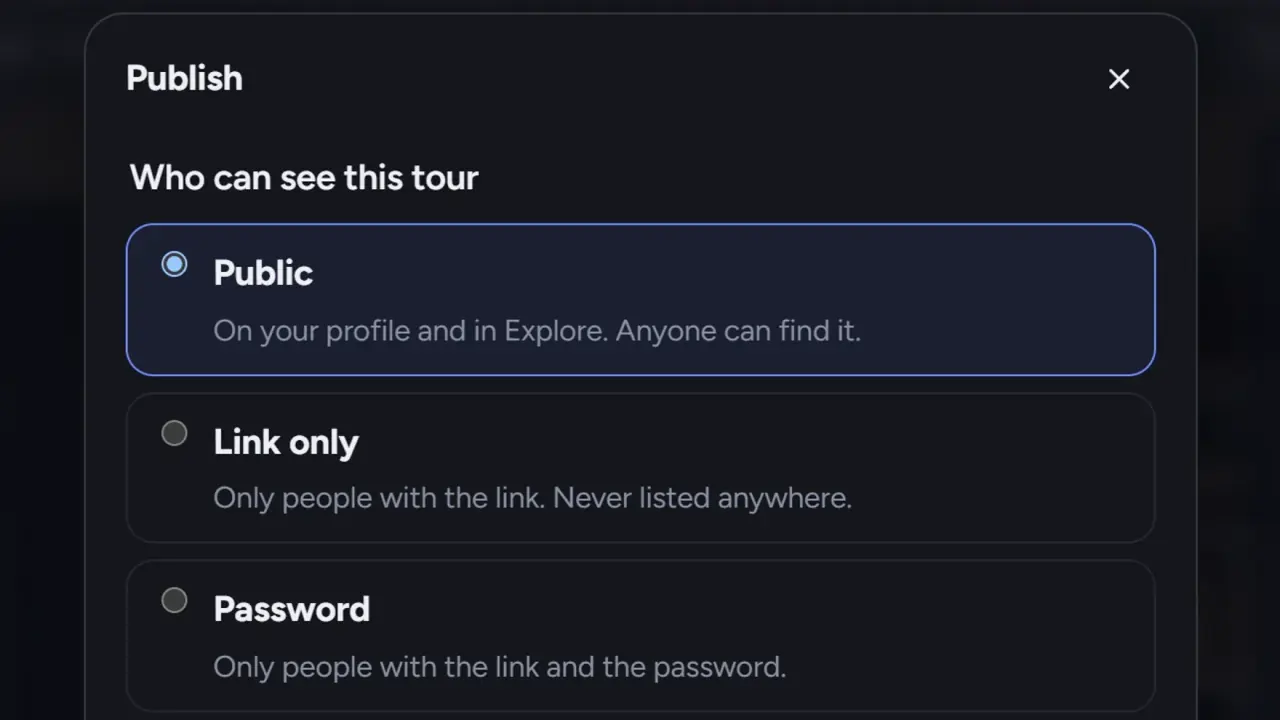
In the Publish dialog, under Who can see this tour:
| Who sees it | Where it appears | |
|---|---|---|
| Public | Anyone | Your profile, Explore, search engines, your followers' feed |
| Link only | People with the link | Nowhere. The default for new tours and projects |
| Password | People with the link and the password | Nowhere. Pro and above |
What "public" turns on
When you publish a tour as public:
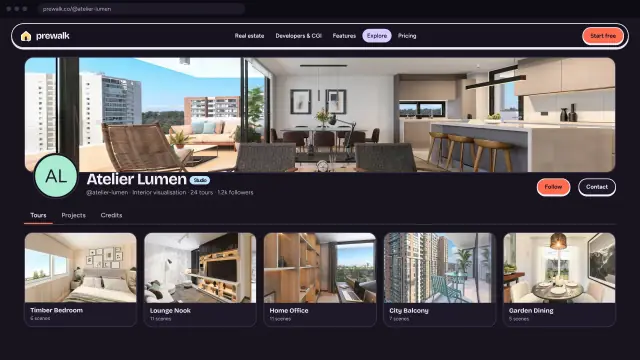
- Your profile. It appears on the Tours tab of prewalk.co/@you, and in your tour count.
- Explore. It shows under New for everyone, and in its category and tag pages. The Featured tab is picked by hand by the Prewalk team; there is no algorithm.
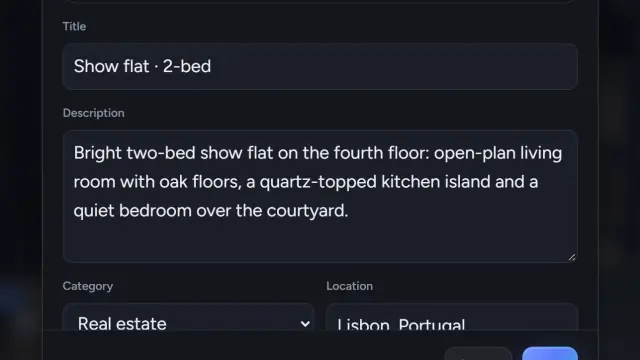
- Search engines. The tour gets a readable address, prewalk.co/@you/your-slug, which you choose in the Address field. That page can be indexed. The player link (prewalk.co/t/…) is never indexed.
- Followers. People who follow you see it in their feed, newest first.
- Credits. Anyone you credited gets a notification and can accept the credit. Credits on link-only content never send notifications, so your private client work stays private.
- Likes, saves and comments become possible. You can turn comments off per tour with Allow comments.
- Public post. The Share tab gains a second address: the post page with the description, comments and your profile. The Tour link still opens the player full screen.
What "link only" keeps private
- The tour is reachable only through its link, which contains a random ID that cannot be guessed from the title.
- It never appears on your profile, in Explore, in search on Prewalk, in sitemaps or in followers' feeds.
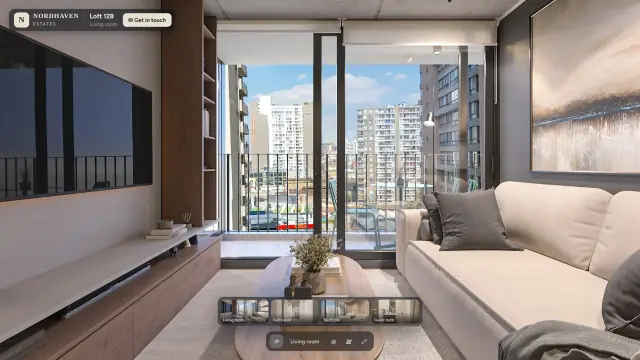
- You can still share it on WhatsApp with a preview image, download a QR code, count views and embed it. Embedding makes it effectively public on that page; the studio asks you to confirm the rights statement when you first get the code.
- Credits inside it stay silent.
Link-only is the right setting for client previews, drafts and listings that should live only on your own website.
Password
A password-protected tour opens only with the link and the password. Visitors type it once; the player then stays open for a while. A password-protected project covers everything in it: its tours and images open with the project's password, and tours you add to it become link-only and leave your profile.
If your plan later drops below the one that includes passwords, existing passwords keep working. You can remove a password, but not set a new one.
The rights statement
Publishing a public tour, and getting an embed code, requires one checkbox: you confirm that you have the right to publish these images, that the client agreed if it is a client project, and that people who can be recognized gave permission. The exact wording is in the dialog. It is required once per tour.
Unpublishing: back to link only
Open Publish again and choose Link only. The tour leaves your profile, Explore, search and feeds at once. Its post address stops working. Likes and comments are kept, and come back if you publish again. Accepted credits leave the credited person's Credits tab and return, without a new notification, when the tour is public again.
Changing a tour's address or deleting it is separate: deleting removes it and its images for good.
Projects
A project has the same three options, with two differences:
- The Publish project dialog lists the project's tours with checkboxes. Checked tours become public with the project. Unchecked ones stay private and do not appear on the public project page. A password-protected tour is unchecked by default; ticking it removes its password.
- A public project needs at least one public tour, image or video. If nothing public is left (say you make its last public tour link-only and it has no images or videos), the project goes back to link-only by itself and you get a notification.
Your profile's own switch
In Settings → Profile, List my profile in Explore is on by default. Turn it off to use Prewalk as a plain portfolio: your profile, links and embeds keep working and search engines can still index your public pages, but nothing of yours shows in Explore or in feeds of people who do not follow you.
Common mistakes
- Publishing a client's project as public before the client has seen it. Send the link-only address first; publish when they approve.
- Expecting a link-only tour to stay hidden after embedding it on a public page.
- Unpublishing to "edit in peace". Edits save while the tour is public too; visitors just see the new version.
- Giving a tour a vague address such as "tour-1". The address is part of the public page's search listing.