Embed a tour, a project or your portfolio on your website
The embed code is on every plan, including Free. You paste it once; after that, what visitors see is always the current tour. This guide shows where the code is, which of the two versions to pick, and where it goes on the common site builders.
Get the code
- Open the tour in the studio and click the Share tab.
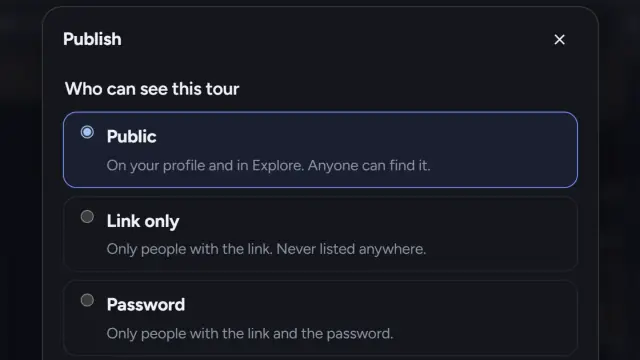
- In Embed on your website, the first time, tick the rights statement and click Get embed code. It is the same statement as when publishing, because an embedded tour is effectively public even if it is link-only.
- Choose the options:
- Theme: Match visitor (auto), Light or Dark. Match the page you are pasting into.
- Show credits: shows the people you credited in the tour's info panel.
- Two-finger navigation on phones: on a phone, one finger scrolls your page and two fingers move the tour. Turn it on when the tour sits in the middle of a long page.
- Accent (Pro and above): your highlight color for buttons.
- Pick the code version and click Copy code.
Recommended or Fixed height?
Recommended is an iframe plus a small script from prewalk.co. The script sizes the embed to its content, and when a visitor clicks a tour it opens full screen on your page, so they never leave your site. Use it wherever you can paste HTML that includes a <script> tag.
Fixed height is the iframe alone, no script. Use it on builders that strip scripts, or when the page's own rules do not allow them. You set the Height (px). Full screen uses the browser's own fullscreen; on iPhone Safari, which does not allow it for embedded content, the tour opens in a new tab instead.
Try Recommended first. If the embed never resizes or opens full screen, the builder blocked the script: switch to Fixed height.
Platform by platform
WordPress (block editor). Edit the page, click + and add a Custom HTML block. Paste the code. Preview the block, then update the page. In the classic editor, switch the editor to the Text or Code tab before pasting.
Wix. In the editor, click Add Elements, then Embed Code and choose Embed HTML. Paste the code into the HTML box. Wix runs embeds in their own frame, so if the Recommended version does not resize, use Fixed height and set the element's height to match.
Squarespace. Edit the page, add a block and choose Code. Set the type to HTML and paste. Squarespace allows scripts on paid sites, so Recommended works; use Fixed height on a trial site if the code shows as text.
Webflow. Add an Embed element (under Components) and paste the code. Webflow shows it on the published site, not in the designer.
Google Sites and other builders that block scripts. Choose Fixed height. Add an "Embed code" element and paste the iframe.
Plain HTML. Paste the code where the tour should appear in the body of the page.
Embed a project or your whole portfolio
- A project: open the project in the studio; its Share panel has the same Embed on your website options. The embed shows the cover, the tours, the gallery and the floor plans without the Prewalk menu.
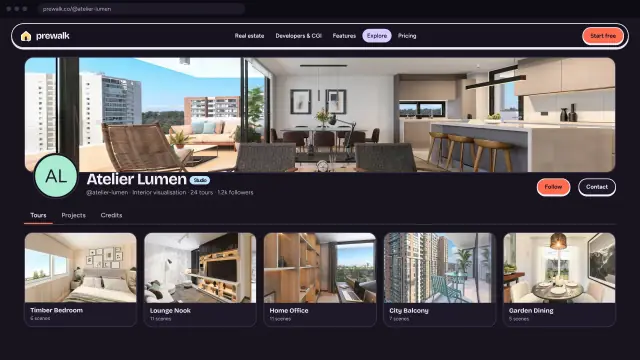
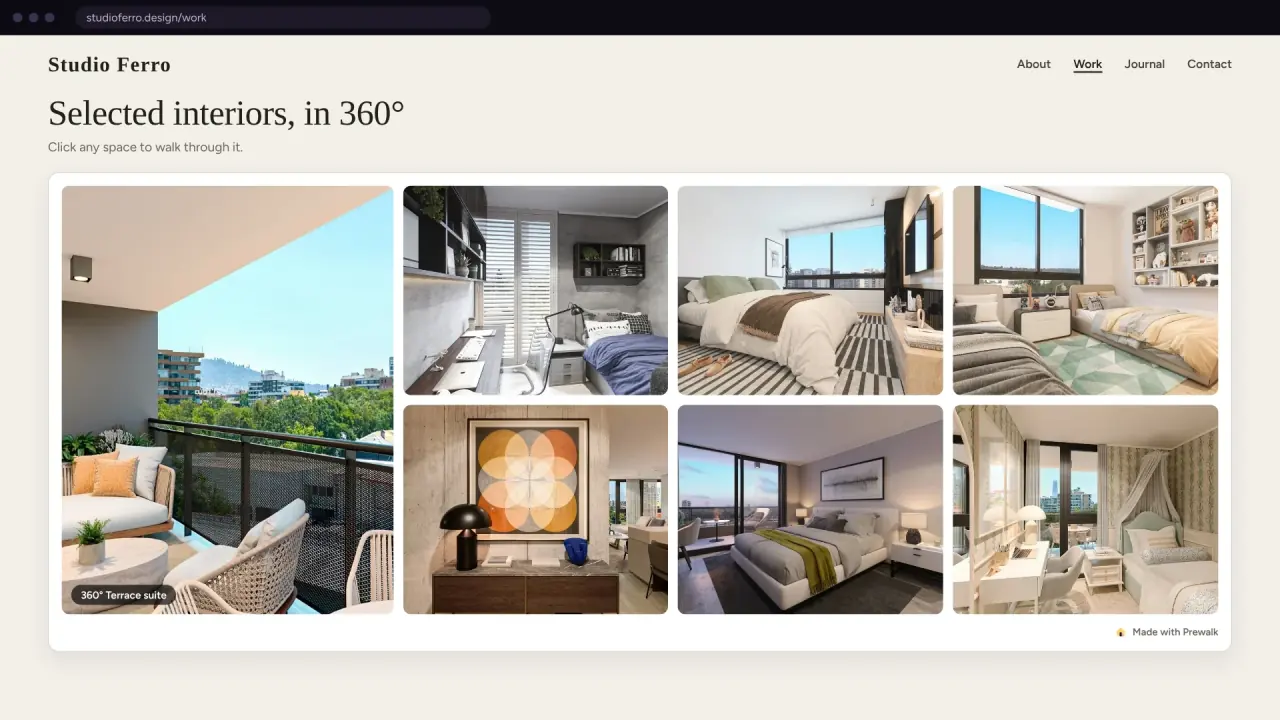
- Your portfolio: on your profile page click Share, then Embed your portfolio. Choose Layout (Grid or Carousel), Items (6 to 48), Show (tours and projects, tours only, projects only), a Category, Tag or Project filter, the Theme, and whether to show the Profile header. Everything you publish later appears in the embed by itself.
The "Powered by Prewalk" line
On the Free plan the code includes a small "Powered by Prewalk" link under the embed, and the player shows a Prewalk badge. On Pro and above the badge is gone and the embed carries your logo and accent color from Settings → Branding.
Control where embeds open
In Settings → Branding:
- Allow embedding is on by default. Turn it off and every embed of your work shows a plain "not available" card; tour links keep working.
- Allowed sites (Pro and above): list the websites where your embeds may open, one per line, up to 20. An empty list means everywhere.
firma.comandwww.firma.comare different addresses, and*.firma.comcovers subdomains.
Views and the First steps tick
Loading an embed does not count as a view. The first drag, tap or button press inside it does. On the studio's First steps list, "Embed a tour on your website" is ticked once the tour has been viewed inside an embed on another website. The visitor's browser has to send the page address (the referrer) with the view, and views on prewalk.co itself do not count.
Common mistakes
- Pasting into a normal text block. The code shows as text. Use the HTML, Code or Embed block.
- Forgetting the return hotspots before embedding. Visitors get stuck on your site, not on Prewalk.
- Leaving Theme on Dark for a white page, or the other way round.
- Embedding a link-only tour and expecting it to stay private. Anyone on that page can watch it.
- Changing your username. Portfolio and public project embed addresses contain it: the old address keeps working for 30 days, then stops. Tour embeds and private project embeds use an ID and keep working.
Next
Share a tour: WhatsApp, listing portals, email signature and QR