Share a tour: WhatsApp, listing portals, email signature and QR
Every tour has a link that opens in any browser, on any phone, with no app. This guide is about getting that link in front of people: which link to send, what they see before they tap, and how to print it.
The two links
Open the Share tab of the tour.
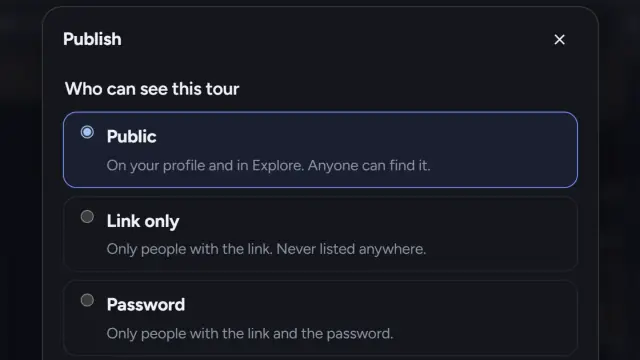
- Tour link (prewalk.co/t/…) opens the player full screen. Send this one in messages and put it on portals. It works for public, link-only and password-protected tours.
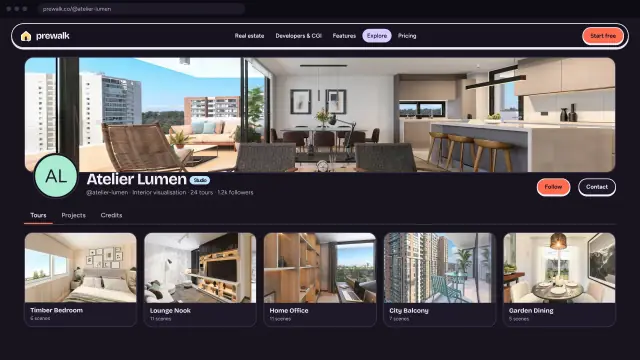
- Public post (prewalk.co/@you/…) is the page with the description, comments and your profile. It exists only for public tours. Send this one when you want people to see who you are and what else you have made.
Click the copy button next to either. The Copy link button in the top bar copies the tour link.
WhatsApp, LinkedIn and messages
Paste the link. The chat shows a preview card: the cover image, the title and the first line of the description. The cover is the start scene's opening view, so set it before you share (Linking rooms explains how). On the Free plan the preview carries a small Prewalk mark; on Pro and above it carries your logo.
Link-only tours preview too. That makes the link safe to send to one buyer: it looks finished, and nobody else can find it.
Previews are cached by the messaging apps. If you change the cover, Prewalk gives the image a new address so the next share shows the new one, but a chat that already has the old preview keeps it.
Listing portals
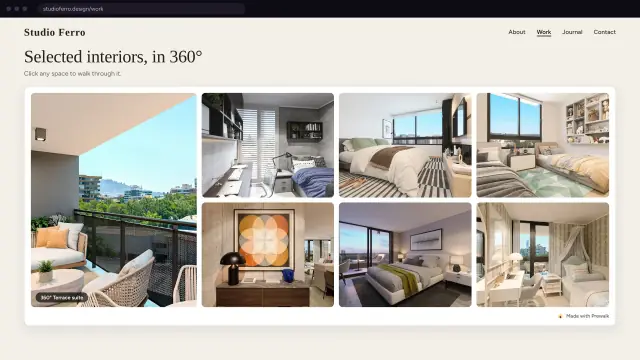
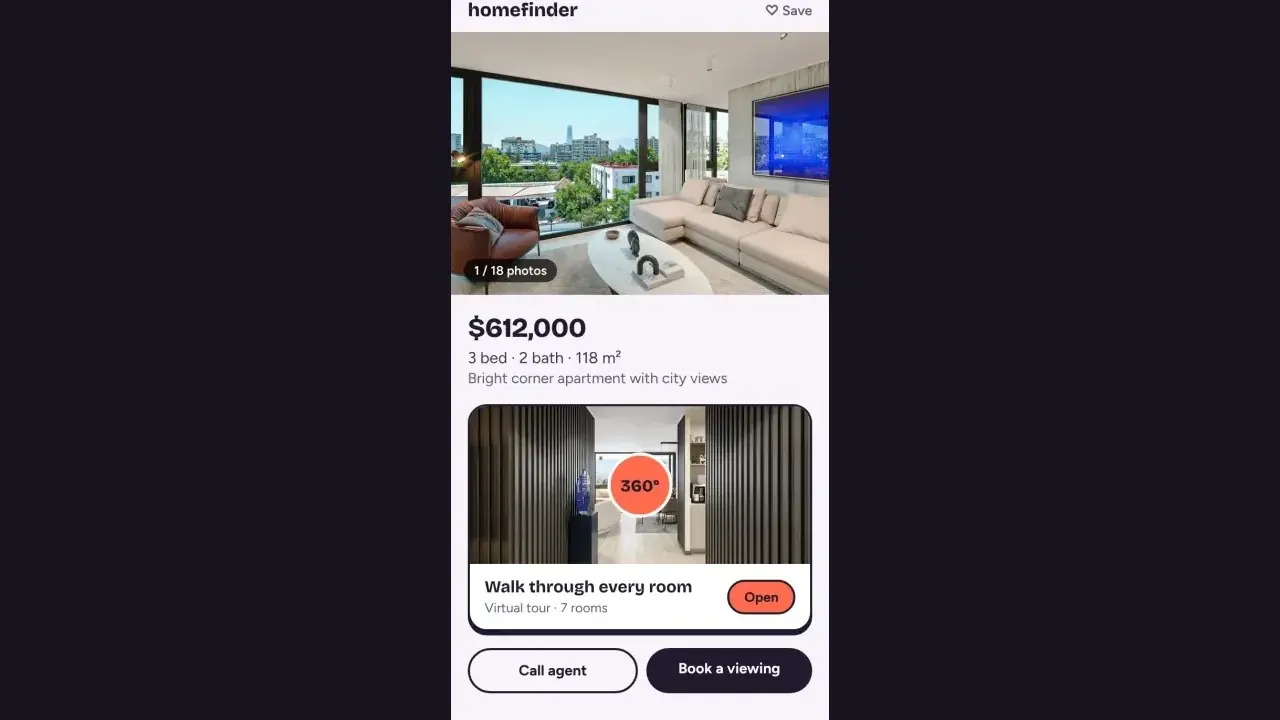
Most portals accept a link in the description or in a "virtual tour" field. Paste the Tour link there. On your own website, embed the tour instead of linking out; see Embed a tour, a project or your portfolio. Prewalk does not add a "go to listing" link inside the tour; the tour stays a space to walk, and your contact details come from your profile or from Get in touch on paid plans.
Email signature and brochures
In an email signature, link your name or a line such as "Walk my latest listing" to the Public post, so the reader lands on your profile as well. In a brochure or a PDF, use the QR code.
QR code
In the Share tab, QR code downloads the tour's address as a PNG (1024 or 2048 px) or an SVG.
- Print at least 3 cm wide. A phone scans a 3 cm code from about 30 cm; a sign read from across a room needs 10 cm or more.
- Use the SVG for anything printed: signs, brochures, business cards. It stays sharp at any size. Use the PNG for screens and documents.
- Keep the white margin around the code. It is part of what makes it scan.
- On Pro and above your logo sits in the middle of the code.
- The QR carries the tour's permanent address (prewalk.co/t/…), so a printed code keeps working even if you change the tour's readable address later; there are no tracking parameters and no scan count. Views count when the tour opens.
If the tour is link-only, the panel warns you: printing the QR makes the link public to anyone who scans it.
The same QR option exists for your profile and for projects, from their Share buttons.
Counting views
Views in the Share tab counts on Prewalk's server, without cookies. Opening the tour page or the player counts once per visitor per 30 minutes. In an embed, loading does not count; the first drag or tap does. On Pro and above you also see a day-by-day chart.
Common mistakes
- Sending the Public post of a tour that is still link-only. The page does not exist; send the Tour link.
- Sharing before saving the opening view, then wondering why the preview shows a wall.
- Printing the PNG at 2 cm. It scans badly or not at all.
- Changing the tour's address after it is printed on a brochure. The old address keeps redirecting for 30 days, then stops; print the QR code instead, it never changes.