Add videos to a project
A project page can hold short videos next to its tours and images: a fly-through, a drone clip, a walkthrough. Videos are uploaded as MP4 files and play only when a visitor clicks them. This guide covers the file rules, the export settings in common editors, and the difference between a project video and a video card inside a tour.
What the Videos box accepts
The line under the Videos heading states it for your plan. The constant parts:
- Container and codecs: MP4 with H.264 video and AAC sound, or no sound.
- Resolution: up to 1080p. 4K is rejected.
- Bit rate: up to 10 Mbps on average.
- Length and size: depend on the plan and are shown in the box.
Prewalk does not convert or compress videos on the server. The file plays exactly as you uploaded it, so the export settings below matter. A file outside the rules is rejected before upload, with a message that says why.
What visitors see
Each video shows its cover frame, taken automatically from about the first second, and a play button. Nothing downloads until someone clicks. One player runs at a time: starting a video pauses the tour and any other video on the page. Add a Caption with ✎; it shows under the video.
Export presets
HandBrake (free). Open the file, choose the Fast 1080p30 preset. On the Video tab keep H.264 and set the quality to constant quality RF 22, or choose average bitrate 8000 kbps. On the Audio tab keep AAC. Start the encode. For a clip without sound, remove the audio track.
Adobe Premiere Pro. Export with Format: H.264. Set the frame size to 1920 × 1080, bitrate encoding VBR 1 pass, target bitrate 8 Mbps, maximum 10 Mbps. Audio AAC. Tick "Use maximum render quality" if the source is 4K.
DaVinci Resolve. On the Deliver page choose MP4, codec H.264, resolution 1920 × 1080, and restrict the bitrate to about 8,000 kb/s. Audio AAC.
Lumion, Twinmotion, Enscape, D5. Render the animation at 1080p and export as MP4 (H.264). If the program only outputs an image sequence or a very large file, run it through HandBrake with the settings above.
A 60-second clip at 8 Mbps is about 60 MB. If the file is over the size limit for your plan, lower the bitrate before you shorten the clip.
Project video or video card in a tour?
They are different things:
| Project video | Video card in a tour | |
|---|---|---|
| Where | The Videos box of a project page | An info point inside a scene |
| File | Uploaded MP4 | A YouTube or Vimeo link |
| Who sees it | Everyone who opens the project | In shared tours on Pro and above; on Free you can set it up in the editor |
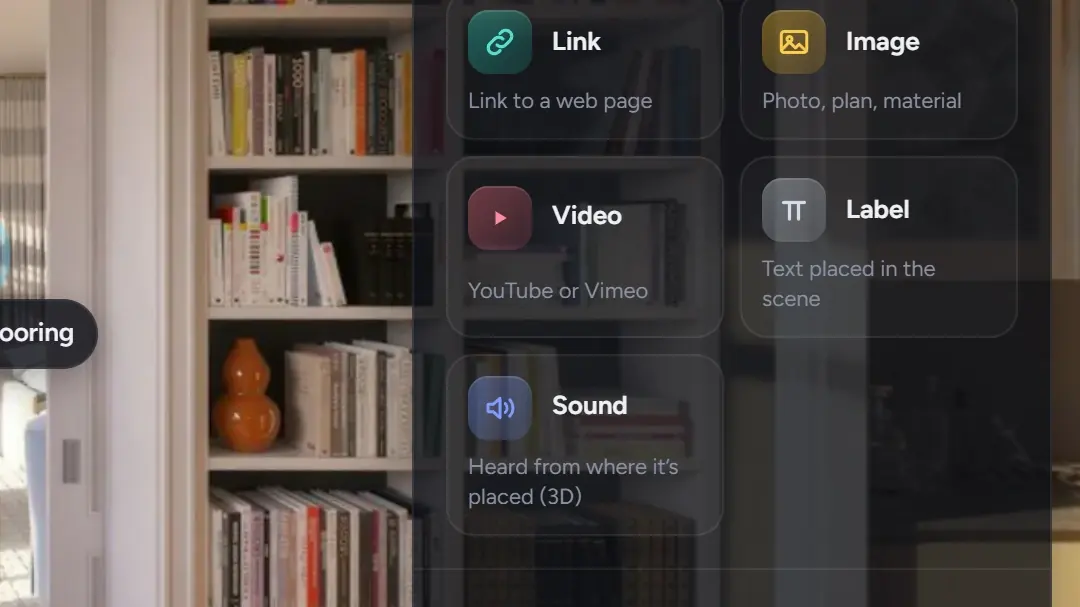
A project page does not take YouTube links. A tour does not take uploaded files. If you have a fly-through on YouTube, put it in the tour as a Video card (Info points, labels and links); if you have the file, put it in the project.
Order and removal
Drag videos to change their order; the first one shows first on the page. Remove a video with its delete button. Deleting the project deletes its videos.
Common mistakes
- Exporting 4K "for quality". It is rejected; 1080p at 8 Mbps looks sharp on every screen the page is viewed on.
- A variable bitrate that spikes over 10 Mbps. The average is what is checked, but set a maximum anyway.
- Uploading a MOV or an MKV. Only MP4.
- Expecting the video to autoplay. It plays on click, by design, so pages stay light on phones.